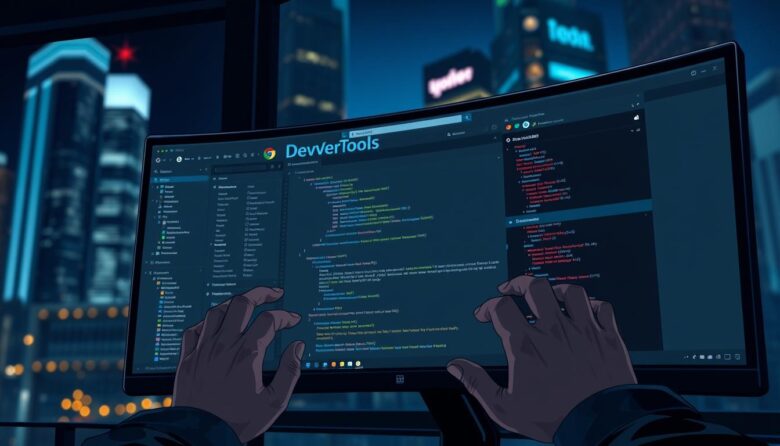
Start faster and fix bugs with a practical tour of chrome devtools that saves time on any page you open. This guide shows how a single panel brings element inspection, live css edits, and network view into one place so you can move from question to fix quickly.
You will learn how to open the panel from the UI or with a quick key, how to switch a tab, and when to dock or undock the view. Expect clear tips on reading rendered elements versus raw source code so you stop chasing stale markup.
The goal is simple: make the browser a faster ally for profiling performance, tweaking code, and checking content. By the end, you’ll know which features to use first and how to apply them to your web pages with confidence.
Why Chrome DevTools Matter for Faster, Cleaner Debugging in 2025
Modern inspection panels let you find layout bugs, trace runtime errors, and measure user-facing speed without switching apps. Centralizing these checks on one page shrinks the time from noticing a problem to fixing it.
Aligning with informational intent: what you’ll be able to do
You will quickly locate layout issues in the DOM, track console errors, and validate network requests from a single tab. That means fewer context switches and faster root-cause detection on any page.
Core features at a glance: inspect, debug, measure, emulate
The Elements panel shows rendered HTML and CSS rules side by side so you can compare Styles vs Computed. The Console surfaces runtime errors and accepts quick code snippets to test fixes.
Use Sources to open files, prettify minified scripts, and set breakpoints. Network lists requests, while Performance records LCP, CLS, and INP timelines. Application and Lighthouse help validate storage, navigation, and SEO-related features.
In short: one panel gives you element-level view, error context, profiling data, and emulation options to create a cleaner developer workflow and fewer regressions across the web.
Open Chrome Developer Tools the Quick, Reliable Way
Open the inspection view fast and reliably so you can jump from page to fix in seconds. Use menu flows, shortcuts, or a command-line flag to match the way you like to work.
From the UI and right‑click inspect
Choose View > Developer > Developer tools or pick More Tools > Developer Tools from the browser menu to open the last panel you used. This is handy when you navigate menus to reach the elements panel or console.
Right‑click any element on the page and select Inspect to land directly in the elements panel with that element selected. You’ll see applied CSS and computed rules immediately.
Keyboard shortcuts and a memory trick
On Windows and Linux use F12 or Ctrl+Shift+I to open the last panel, Ctrl+Shift+C for element inspection, and Ctrl+Shift+J for the console. On Mac use Fn+F12 or Cmd+Option+I, Cmd+Option+C, and Cmd+Option+J.
Try the mnemonic: C = CSS (Elements), J = JavaScript (Console), I = your last choice. It helps when you switch panels quickly with the keyboard.
Auto-open and docking for flow
Launch the browser with –auto-open-devtools-for-tabs to open devtools for every new tab. Use a single application instance so the flag takes effect for new pages.
Toggle dock positions from the three‑dot menu on the DevTools header to place the panel bottom, right, or undocked. Docking keeps code and page visible side by side while you test content and layout.
Deep-Dive the Elements Tab: Inspect the DOM, CSS rules, and live-edit styles
The Elements tab shows the page the browser actually renders, letting you inspect and tweak markup on the fly.
Elements vs page source
What you see in the elements panel is the live DOM, not the static HTML file. JavaScript-created nodes appear here after scripts run, so this view reflects the real page structure.
Use the inspector to hover and select an element. The panel highlights margin and padding and shows exact nesting and accessibility details.
Styles vs Computed
The Styles pane lists explicit css rules and declarations. It helps identify which rule wins and why a property is applied.
The Computed view shows final values after cascade and inheritance. Check it to find inherited defaults or user-agent values that explain odd rendering.
Quick edits and tracing
Right‑click an element to Edit as HTML or Edit as Text. Delete nodes to test layout changes; refresh to revert to the original page.
Toggle individual css declarations to A/B test fixes, then click a rule’s file link to jump to the source file and line in Sources. Use the element breadcrumbs to move up the hierarchy fast.
These habits make it easier to find the code causing a problem and apply a confident, minimal fix on the next deploy. Also remember the shortcut to activate inspect mode for quick selection.
Tip: copy working snippets from the Styles pane back into your codebase to make temporary edits permanent.
Use the Console to spot errors fast and run JavaScript on the page
When a page misbehaves, open the Console first to see runtime messages and links to the offending code. The Console lists errors and warnings with a document and line reference so you can jump where it hurts.
Common error patterns to recognize
Uncaught TypeError usually means a missing method or wrong value. A SyntaxError flags broken javascript syntax or stray characters.
MIME type mismatches point to incorrect file types served by the server. Cross-frame or iframe warnings often describe security boundaries rather than fatal failures.
Run commands, inspect $0, and act
Execute quick experiments: log objects, call functions, or change styles on the fly. Use $0 to target the last selected element from Elements then read or set properties like $0.textContent or $0.style.backgroundColor = “red”.
Expand stack traces for more details and click links to open files in Sources for deeper debugging. Filter by level (Error/Warning/Info) and reuse console history or snippets to speed iterative fixes on the page.
Sources Tab Power Moves: debug JavaScript, set breakpoints, and local overrides
The Sources tab is where you turn a mystery stack trace into a clear path to the bug.
Jump to any file instantly with Open File (Ctrl/Cmd + P). Click the Prettify icon to format minified scripts so code is readable and searchable.
Pause, step, and inspect
Use the Pause icon to halt execution and inspect Scope variables and the call stack. Step over, into, and out to follow how values evolve line by line.
Set breakpoints and trace logic
Click a line number to add a breakpoint or insert a debugger statement in your javascript to stop where it matters. Try conditional and DOM breakpoints to pause when specific state or element mutations occur.
Local overrides and live edits
Enable Local Overrides to save edits to a chosen folder and serve them on reload. This lets you prototype fixes on the page without touching the server.
Map workspaces on windows to edit assets live and compare changes side by side before you commit. These moves make the panel a fast, repeatable way to debug javascript and ship safer code.
Network and Performance: trace requests, throttle, and tune Core Web Vitals
Trace every request and measure page responsiveness so you know where load time is lost. Use the network tab to inspect timing, headers, initiator, and response details for each request. That reveals which files or endpoints block rendering.
Network tab basics
Click any entry to view headers, payload, and a timing breakdown. Sort by size or duration to spot oversized files or slow endpoints that affect user experience.
Simulate real users
Apply throttling profiles like Fast 3G and toggle Disable Cache to mimic first-load conditions. Validate MIME types to avoid console errors and rendering problems in the browser.
Performance profiling and Core Web Vitals
Record a page load in the Performance panel to surface LCP, CLS, and INP. The timeline shows filmstrips, CPU activity, network waterfalls, and main thread tasks.
Zoom into the main thread to find long tasks and render-blocking scripts. Prioritize fixes that improve content needed for LCP and defer non‑critical resources identified in the waterfall.
After adjustments, re-run profiles and compare recordings. Measure real gains before shipping changes so your web pages load faster and feel snappier for users.
chrome developers tools extras that level up your workflow
A set of extra panels and quick actions helps you move from discovery to fix with evidence. Use these features to check storage, audit performance, and hunt down unused code without guessing.
Application & Security
Open the Application tab to inspect cookies, localStorage, and IndexedDB. Clear state to simulate a fresh user and run the BFCache test to verify instant back/forward navigation on the page.
Switch to Security to verify every frame is served over HTTPS. Review certificate issuer, cipher, and expiration details so you can fix mixed content or expired certs quickly.
Lighthouse & Memory
Run Lighthouse locally for fast audits of Performance, Accessibility, Best Practices, and SEO. Apply its prioritized recommendations to improve measurable metrics.
Use Memory to capture heap snapshots and track allocations. Compare retained versus shallow sizes to find large objects and target memory leaks in your code.
CSS Overview, Coverage & Device Mode
Open CSS Overview to capture color palettes, fonts, media queries, and other style values. Standardize styles and decide which fonts to preload from the data shown.
Use Coverage to reveal unused CSS/JS and highlight used lines inside files. Combine those findings with the network tab and Performance traces to inline, split, or lazy-load assets for the page.
Flip on Device Mode to emulate mobile viewports, test touch, and capture full-size screenshots. Use the command menu to disable JavaScript or toggle dark mode for quick visual checks.
Put these DevTools techniques to work and iterate with confidence
Treat the panel as a performance lab: measure, change, and confirm before you ship. Start every session by opening devtools fast — on Windows use F12 or Ctrl+Shift+I, on Mac use Fn+F12 or Cmd+Option+I — so you land in the last tab you used.
Follow a short checklist: inspect the element in the elements tab, verify css values, then validate requests in the network tab. When a bug resists, debug javascript with targeted breakpoints in the sources tab and step through code to confirm assumptions.
Use the console to reproduce errors and tweak $0, apply local overrides to test changes, then run Performance and Lighthouse to confirm LCP, CLS, and INP gains. Wrap up with device emulation and the command menu to catch regressions across viewports before you push code.