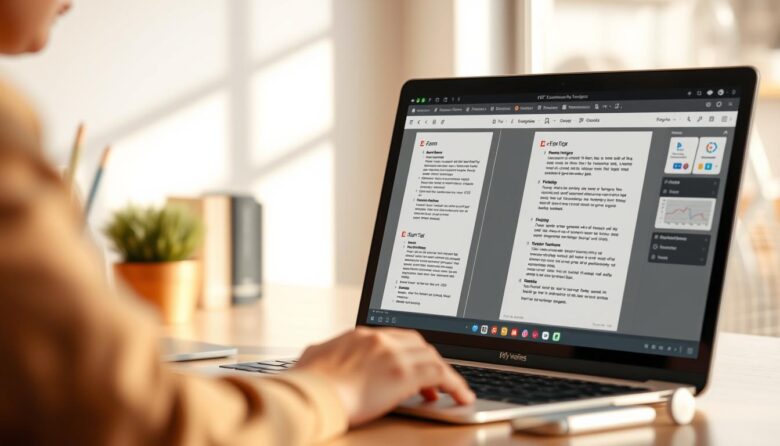
Managing pdfs in your browser should be simple. This intro walks you through a handful of extension options that actually streamline everyday work with files and documents. You’ll stop juggling apps and get straight to the actions that matter.
We spotlight an industry leader—Adobe Acrobat—and show when a lighter extension is the faster choice. Adobe’s extension serves 320,000,000 users with a 4.4 rating from 60.7K reviews. Its free features cover viewing, printing, commenting, and filling forms, while premium tools add conversion, page organization, compression, and password protection.
Along the way, you’ll see which additions improve your web experience and which keep your browser responsive with big files and images. Privacy notes matter too; the extension vendor states data isn’t sold and is used only for core functions.
By the end, you’ll know which pdf viewer or reader to pick, when to use local access for sensitive documents, and how to pair one main extension with a focused helper for common tasks.
Why Chrome extensions beat the default PDF viewer for everyday work
The browser’s built-in reader handles quick opens, but it stops short when work gets real.
That default viewer is fine for basic pdf viewing, yet it lacks annotation, editing, and page management. When you need to add comments, fill a form, or sign forms, you’ll hit limits fast.
Extensions give one-click access to highlight, sticky notes, and quick drawings without switching apps. They let you search across multiple pdfs, reorder pages, and export tidy pdf files for deadlines.
For teams, markup and comments travel with the document so collaborators see the same changes. Many extensions also connect to cloud storage, opening and saving files directly to drives to avoid duplicate copies.
Overall, the right extension balances lightweight viewing and practical functionality. It speeds routine tasks like fill sign forms and printing so you finish faster and keep your workflow in the browser.
The top chrome PDF tools to install right now
Install a few smart extensions and handle most document tasks without leaving your tab. Below are the best pdf picks for fast viewing, quick edits, and focused actions.
Adobe Acrobat
Adobe Acrobat is the dependable pdf reader inside your browser. It offers free comments, highlights, drawings, and Fill & Sign. Premium features add convert, merge, split, compress, and page-level edits for advanced editing.
Smallpdf
Smallpdf shines for quick conversions and compression. Use it to shrink a large file, convert to Word, or merge pages without slowing your workflow.
Kami
Kami turns static pages into a collaborative workspace. Students and teams can annotate in real time and link work to learning platforms for smooth sharing.
AskYourPDF
AskYourPDF lets you chat with long pdfs. It summarizes sections and pulls key text so research goes faster and you don’t waste time scrolling.
Split PDF & WPS
Split PDF extracts exactly the pages you need in seconds. WPS PDF Extension provides free viewing, highlights, notes, and simple conversions for daily use.
chrome PDF tools by what you need to do
Not every extension fits every task; choose by what you actually need to do with files. Below are focused use cases and which extension features make work faster and cleaner.
Best PDF viewer and reader experience for smooth in-browser viewing
Look for smooth scrolling, crisp rendering, and fast search so long pdfs feel effortless to read. A solid pdf reader also opens local files quickly and lets you pin the extension for instant access.
PDF editor and annotator for text, highlights, drawings, and comments
If you mark up documents often, pick an editor that supports text notes, highlights, freehand drawings, and threaded comments. Adobe’s free extension covers viewing and commenting well; premium plans add advanced editing when needed.
PDF converter and compressor for Word, Excel, PPT, JPG, and file size control
Converters make format swaps fast; compressors keep attachments under upload limits without losing readability. Use conversion when you must edit in Word or share editable copies.
Organize PDF pages: merge, split, rotate, reorder for cleaner documents
Page organization speeds cleanup: merge several files, split sections, rotate scans, or reorder pages for a polished final file. These actions save time before sharing or archiving pdfs.
Fill and sign forms: e-sign workflows that feel like desktop tools
Choose Fill & Sign that stores signatures and initials. That mirrors desktop simplicity and avoids printing while keeping forms professional and audit-ready.
Save web content to PDF: keep page layout, links, and access offline
When you capture articles or receipts, save web content to PDF to retain layout and links. This creates reliable offline records for research and expense tracking.
How these extensions compare on what matters
Pick an extension that stays responsive when your documents grow large or image-heavy. Performance, privacy, and sync behavior decide whether an extension helps or hinders your day.
Performance and resource use
Small conversions and merges stay fast with Smallpdf, while a robust editor like adobe acrobat holds steady on very large files and image-heavy pages. Test with a long file to see memory and scrolling performance in your browser.
Security, privacy, and cloud policies
Privacy varies. Adobe discloses it doesn’t sell data and uses uploads only for core functions. Other services may delete processed pdfs after a short window—check retention before uploading sensitive files.
Integrations and offline limits
Look for Google Drive, Dropbox, and LMS links to cut friction. Adobe Document Cloud syncs across devices, but most browser-first options need the web. Keep a desktop backup for offline work and restricted networks.
Value for money
Free features cover basic viewing, comments, and simple edits. Advanced editing, batch conversions, and password protection usually require paid plans. Combine a light converter with a full editor for the best everyday value.
Best picks for specific users and workflows
Different workflows need different extensions—pick what solves your daily bottlenecks. Below are focused suggestions for students, researchers, and business teams so you get the most from your pdf reader and helpers.
Students and researchers: faster reading, summarizing, and citing
AskYourPDF speeds research by summarizing long pdfs and answering questions across multiple files. Use it to pull quotes and keep citations tidy.
Kami makes classroom collaboration simple. Highlight, add media notes, and share live feedback with classmates and instructors.
Business teams: contracts, forms, and reliable e-sign
For contracts and sign forms, choose Adobe Acrobat for consistent signing flows and audit-friendly tracking. Its Fill & Sign is handy, and premium send features suit legal work.
Smallpdf helps when you need fast conversions or to compress large files before sharing. Split PDF is ideal for extracting exact pages for proposals, exhibits, or packets.
Tip: mix a solid viewer with one specialized extension and connect storage like Google Drive to avoid version sprawl. That combo keeps review, edit, and signing tasks smooth across the browser and devices.
Choosing the right extension: key features to prioritize
Focus on the features that save time and reduce friction when handling pdfs. Start by listing what you use most and match that to an extension’s core feature set.
Must-have basics: viewer, annotations, forms, and page organization
Pick a clear viewer with fast search and reliable annotations. These cover about 80% of everyday work with documents.
Make sure the extension can rotate, reorder, split, and merge pages. Page organization keeps final files tidy and professional.
Advanced editing, OCR, and export options when you need more control
When you edit text or tweak objects often, choose an editor with advanced editing and OCR for scanned files. OCR makes scanned text searchable and copyable.
Also check export options to Word, Excel, and PowerPoint so pdf files stay flexible for collaborators. Finally, weigh performance, privacy, and price against how often you need those premium features.
Quick setup and pro tips to improve your PDF workflow
A short setup and a couple of pro habits save minutes on every file you touch. Start by pinning your preferred extension for one-click access and testing that it opens local files directly. Adobe’s extension supports this flow and links to Adobe Document Cloud for easy sync.
Install, pin, and open local files directly
Install the extension you prefer, then pin it to the toolbar so the viewer is always within reach. Confirm local file opening works—this cuts steps when you need immediate access without uploading.
Use cloud storage and keyboard shortcuts
Connect Google Drive or Dropbox to open and save from the web. A simple routine—open from cloud storage, annotate, then save back—keeps versions tidy and reduces downloads.
Learn a few shortcuts for highlight, comment, and page rotate to shave seconds off repetitive actions.
Combine a lightweight stack for flexible workflows
Keep a lean setup: one dependable viewer, a compact splitter, and a fast converter. That combo covers most needs without slowing your browser.
When collaborating, standardize on one pdf extension so annotations and signatures look consistent across the team. For sensitive documents, avoid public machines and download locally if you need tighter control.
Ready to level up your browser with the right PDF extensions
Swap slow workflows for a focused extension stack and reclaim time on every document.
Start with a dependable editor and signer like adobe acrobat, then add a lightweight helper for page extraction or size fixes. This mix gives you a solid pdf viewer and quick actions without clutter.
Handle form fills, fill sign forms, and sign forms directly in the browser to cut printing and scanning. Use AskYourPDF or Kami when summaries or collaboration speed research across long pdfs.
Keep the set minimal: one full editor, one compact pdf extension, and a fast splitter or compressor for large files. Pin shortcuts, try the list on a live task, and keep what saves you time on documents.